.svg)

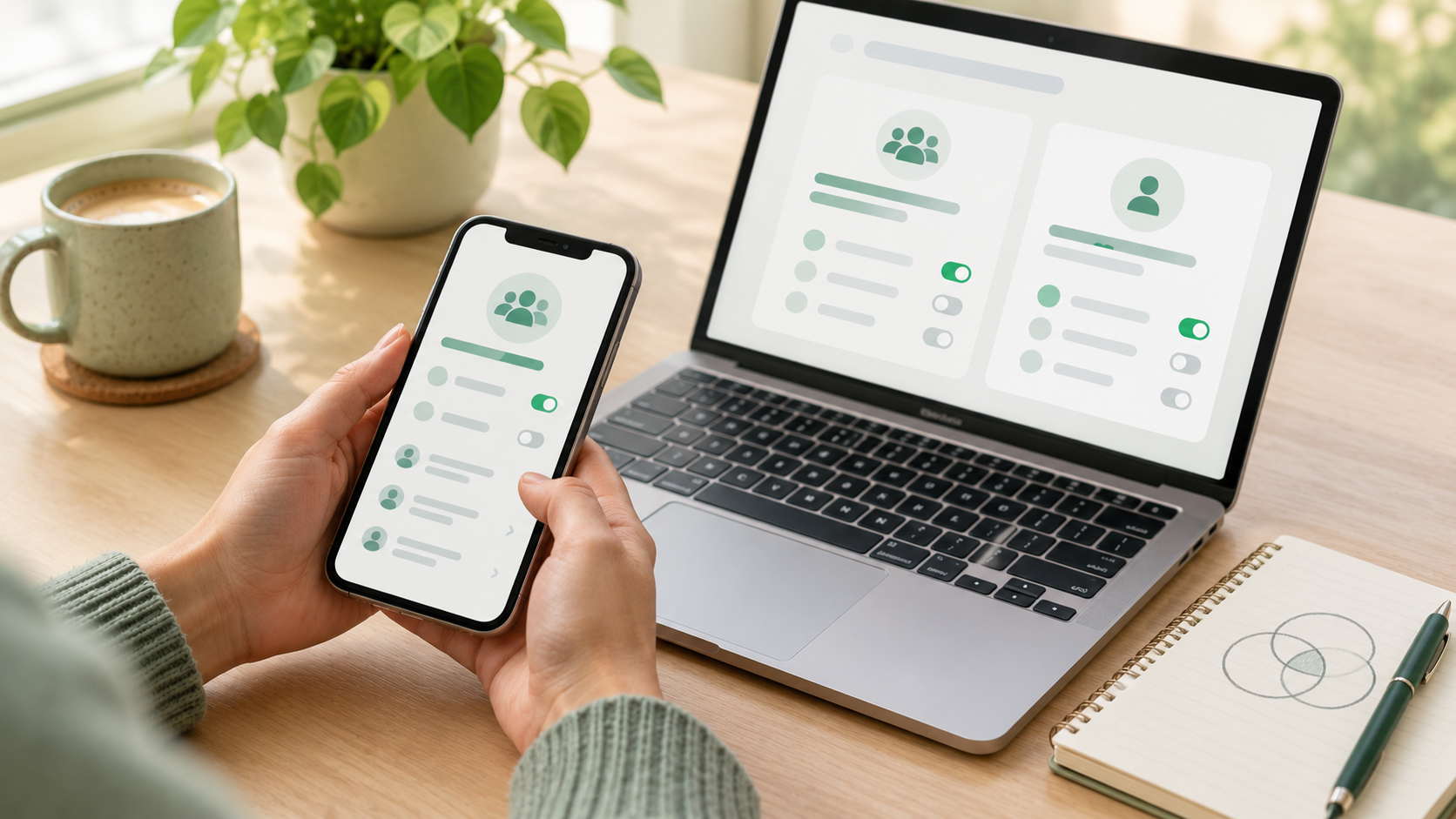
To segment mobile audiences in Braze, start with the app and platform. Add filter groups for push permission, app version and recent activity, then use an exclusion group for anyone you must not reach. Check the reachable count by channel, calculate exact statistics before launch, and test a real profile.
Key Takeaways
- Build a segment in order: choose the app, add filter groups, then add exclusion groups.
- Device-dependent filters match users, so a message reaches all of a user's devices unless you choose the last used device.
- Push subscription and push registration are separate, so total segment membership can exceed the push-specific reachable users rows.
- Negative filters joined with or on the same attribute can target every user, and an exclusion group avoids that.
- Segment size on screen is an estimate, so calculate exact statistics before you send.
- Segment Extensions look back up to 730 days, while a default segment can use event properties from the past 30 days.
How do you segment mobile audiences in Braze?
A Braze segment is a dynamic group of users who fit criteria you define, such as attributes, behaviour and custom events. Membership updates as data is processed, so a segment you build today keeps tracking tomorrow's sessions without a rebuild. That makes the first build the part worth getting right.
The order of work matters more than the filter list. Choose the app, build the inclusion logic, then add the exclusions. Check the numbers before the audience goes near a campaign or Canvas.
- Choose the app or platform. "Users from specific apps" targets users with at least one session in those apps.
- Add filter groups. We recommend giving each group one clear reason for a user to be in the audience.
- Add an exclusion group for anyone the message must never reach.
- Open the reachable users panel, then calculate exact statistics.
- Look up a real user profile and confirm it matches, or see which criteria it misses.
One limit shapes everything above. A profile doesn't exist until a user has used the app for the first time. People who haven't opened it yet can't be targeted by a segment, so plan acquisition-stage messaging with that in mind.
Which Braze filters should you start with for mobile segmentation?
Mobile audiences are built from four kinds of signal: permission to send, device and app state, recent behaviour and channel engagement. The table lists the filters we reach for first, with the behaviour the documentation calls out for each. Read the watch-out column before you trust a filter name.
| Filter | What it segments by | Watch-out |
|---|---|---|
| Foreground Push Enabled | Users who have provisional push authorisation or are enabled for foreground push | Does not include users who have unsubscribed |
| Foreground Push Enabled for App | Whether users have push enabled for your app on their device | Does not take push subscription status into account |
| Background or Foreground Push Enabled | Whether users have a push token and haven't unsubscribed | Our suggestion: compare it with the foreground filters before using it for visible notifications |
| Push Subscription Status | Subscription status for push | By default Braze sets Opted-In when a user accepts the system prompt, but Unsubscribed is set only by your app or an API call |
| Device OS Version Number | Users with one or more devices on an operating system version within a range | Matches the user, so a second device on another version still qualifies them |
| App version filters | The app version recorded from the user's device | The version updates when the SDK captures it, which depends on users opening the app |
| Last Used App | The latest time a user opened your app | We recommend pairing it with a push permission filter before targeting lapsed users |
| X Sessions In Last Y Days | Number of sessions in your app in a chosen number of calendar days between 1 and 30 | The window runs to 30 calendar days, so longer histories need a Segment Extension |
| Uninstalled | Whether users are currently marked as uninstalled | Reflects the current state, not a history of uninstalls |
| Last Received Push | The last time a user received one of your push notifications | We recommend using it in an exclusion group to limit how often one person is messaged |
Two of these deserve extra care. The documentation advises using "greater than" or "equal" to current and future app versions, and warns that past version filters may cause unexpected behaviour. If you need to reach people on an old release, test the segment against a known profile before you rely on it.
How do push subscription and push registration change who you can reach?
Push subscription is a user's global preference. By default, Braze push campaigns target only users who are Subscribed or Opted-in for push. Registration is a separate question, because a profile can show Subscribed while no push token is assigned.
That gap explains a common surprise. Total segment membership can be higher than the sum of users shown in the push-specific reachable users rows. Nothing is wrong with the segment when that happens.
By default, Braze moves a user to Opted-In when they accept the system prompt. That default doesn't apply to Android 12 or earlier users, and an SDK setting can turn it off.
Unsubscribed is different, because it is set only when your app or an API call sets it. If a user turns push off from an in-app preference centre, update the state to Unsubscribed in Braze so segmentation sees the same preference. We suggest agreeing that handoff with your engineers before launch.
Permission timing creates two different groups that look alike on a dashboard. Users who haven't been shown the prompt yet appear as foreground and background push disabled on iOS. Users who declined appear as background enabled, and so do users who allowed push and later switched it off in device settings, once they log a session.
We recommend building these as separate audiences. People who haven't been asked are candidates for a push primer in-app message, because a user's decision at the system prompt is final and you can't ask again after they decline. People who declined are better served on another channel.
Starting with Android 13, push permission must be asked of and granted by the user. A decline on iOS leaves the push subscription state at Subscribed with no foreground token on the profile. Check both signals before you label anyone as unreachable.
What happens when one user has several devices?
Device-dependent filters (device model, device OS and app version) match users, not devices. Your segment contains all users who match, and those users are sent a message on all their devices, including ones that don't meet your filter criteria.
Two settings help. Messages sent can exceed audience size, because each device can receive a send. For push, you can select "Only send to the user's last used device" under Additional Settings when composing the message.
Membership is also judged at send time. A user may have been in your target segment when the message went out, then moved out of it after their device changed. Looking at the profile afterwards can make it seem the user should never have qualified.
Shared devices add a second wrinkle. Push tokens are specific to both a device and an app, so they can't distinguish between multiple users on the same device, and the token is reassigned to the new user when someone else logs in. "Received" filters can also match users who share a channel identifier with another profile that received the message, and a shared push token is one example.
How should you combine and, or and exclusion groups?
Filters inside a group can be joined with either and or or, and filter groups can be joined the same way. Exclusion groups sit apart: they always connect to your filter groups with an and-not operator, and they override segment criteria. Anyone who falls into the exclusion criteria is out, even if they meet every inclusion filter.
The trap is negative filters with the or operator. If "is not", "does not equal", "does not match regex" or "not included" appear two or more times on the same attribute, users with all values for that attribute are targeted. A segment meant to be narrow becomes the whole base.
Our rule is to put every must-not-reach condition in an exclusion group instead of a negative filter. The exclusion group overrides the inclusion logic, so a later edit to the filters can't re-admit the people you meant to protect.
How do you trust the segment size before you send?
The number on screen is an estimate unless you ask for more. Estimated statistics sample a portion of the segment, so larger workspaces can see larger margins of error. Workspaces with more than 50,000 users show estimated users, and smaller workspaces show exact users.
Selecting Calculate exact statistics gives a count with accuracy of 99.999% or greater. Estimated statistics are cached for 15 minutes unless you edit the segment, and exact results are cached for 24 hours. Per-filter statistics stay estimated even after you calculate exact stats, so don't use them as audit figures.
The reachable users panel needs a careful read. Total reachable users includes everyone who matches your segment filters, even if they are no longer subscribed to a channel. To line the segment total up with subscribed users, add a filter such as Push enabled for iOS is true, or the equivalent for your channel.
Sends can still land below the estimate. Braze lists three causes: segment membership changes after you preview the audience, users fail channel reachability checks at send time, and audience filters change after launch. Exact membership is calculated before a segment is affected by a message sent in a campaign or Canvas.
Small test audiences need one more habit. Very small segments have an estimated range that includes 0, so a zero on screen doesn't prove the segment is empty. Calculate exact statistics, then use user lookup to confirm a named profile matches.
When does a Segment Extension earn its place?
Segment Extensions let you reach users who completed a custom event or purchase event in the past two years (730 days). A default segment can already use event properties from the past 30 days, so reach for an extension only when the question needs older history. The documentation itself calls extensions an enhancement, not a requirement.
Plan for the operating limits. The default allotment is 50 active Segment Extensions per workspace, and refreshes can take up to 60 minutes because of data processing. Refresh settings turn off automatically for unused extensions, so an audience nobody touches can go stale.
Cost is also part of the design. Each refresh for SQL segments consumes SQL segment credits, and each refresh for warehouse-synced extensions incurs a cost within your third-party data warehouse.
Timing matters for mobile sends. Users who no longer meet the criteria continue to match your default segment until the refresh process is complete and updates are applied. For a time-sensitive push, we recommend scheduling the refresh at least an hour ahead of the send and checking that it finished.
What does a segment look like for a hypothetical retailer?
Take a hypothetical retailer with an iOS app and an Android app that wants a push campaign for people who've gone quiet. This is an illustration only. It describes no client work and carries no results.
First, the retailer chooses users from specific apps and selects both apps, since a session in either counts. The inclusion group combines Last Used App, set to "more than a chosen number of days ago", with Foreground Push Enabled set to true. That keeps the audience to people who can see a push at all.
Then comes the exclusion group. It removes users who received a push recently, using Last Received Push, and users currently marked as uninstalled. The retailer puts both in an exclusion group so no later edit to the inclusion logic can bring them back.
Next the retailer opens the reachable users panel. The segment total is larger than the push rows add up to, and the team treats that as expected because total membership can be higher than the push-specific rows. They calculate exact statistics and look up one test profile that should match.
Last, they decide about devices. Because a user with two devices would receive the push on both, the retailer selects the last used device option for this campaign. Each decision maps to a documented behaviour above.
How does this connect to the rest of the programme?
Segmentation sits at the centre of a mobile programme, so the posts around it matter. For channel-specific detail, read Best Practices for Push Notification Segmentation in Braze. For audiences defined by absence, How to Build Effective Win-Back Campaigns in Braze shows how lapsed users are brought back.
A segment is only as good as the data behind it. That is why Tracking User Events for Better Campaigns in Braze comes first for many programmes. Two in-app companions follow naturally: How to Create Engaging In-App Messages with Braze covers the primer messages mentioned above, and How to Set Up In-App Message Triggers in Braze covers when they appear.
Once the right people are selected, Using Deep Links to Drive Mobile Engagement in Braze covers where the message takes them. For filter definitions, keep the Braze documentation on segmentation filters open while you build.
What should you do first?
As a Braze implementation partner, CustomerIK recommends writing the exclusion rules before the inclusion rules, then testing one real profile against the segment before any send. It is the cheapest check there is, and it catches the multi-device and operator mistakes described above.
This post covers documented segmentation behaviour. It does not settle questions about consent, data protection or cross-border transfer for your audience.
Frequently Asked Questions
1. Can I target users who haven't opened my app yet?
No. A profile isn't generated until a user has used the app for the first time. Those users can't be targeted by a segment.
2. Can I see who was in a segment at a past send?
Braze keeps no per-user segmentation history, so you can't check membership retroactively. To capture membership at a point in time, export the segment's users or use the segment export endpoint before you send.
3. Why does my small segment show zero users?
Segment size in the dashboard is often an estimate based on a sample of users. Very small segments have an estimated range that includes 0. Calculate exact statistics to see the real count.
4. Which filter finds users who can see a visible push?
Foreground Push Enabled covers users with provisional authorisation or foreground push enabled, and it excludes users who have unsubscribed. Foreground Push Enabled for App is app-specific and ignores subscription status.
5. How quickly does segment membership update?
Braze updates membership as data is sent back and processed, typically instantaneously. A user's membership doesn't change until that session has been processed.
Sources
- Braze, Segments. Retrieved 13 Oct 2026.
- Braze, Create a segment. Retrieved 13 Oct 2026.
- Braze, Segmentation Filters. Retrieved 13 Oct 2026.
- Braze, Measure segment size. Retrieved 13 Oct 2026.
- Braze, Segment Extensions. Retrieved 13 Oct 2026.
- Braze, Troubleshoot segments. Retrieved 13 Oct 2026.
- Braze, Push enablement and push subscription. Retrieved 13 Oct 2026.
- Written by CustomerIK, a Braze implementation partner.
CustomerIK is a Braze implementation partner working across onboarding, technical integration, marketing operations and customer data management.
If your mobile audiences need a cleaner build before the next send, let's talk.
.svg)